Resident Guide
Resident App Guide
Welcome! The Palmetto Guard resident app lets you create passes for your guests and stay up to date with community alerts — right from your phone. Here's everything you can do.
Overview
Signing in
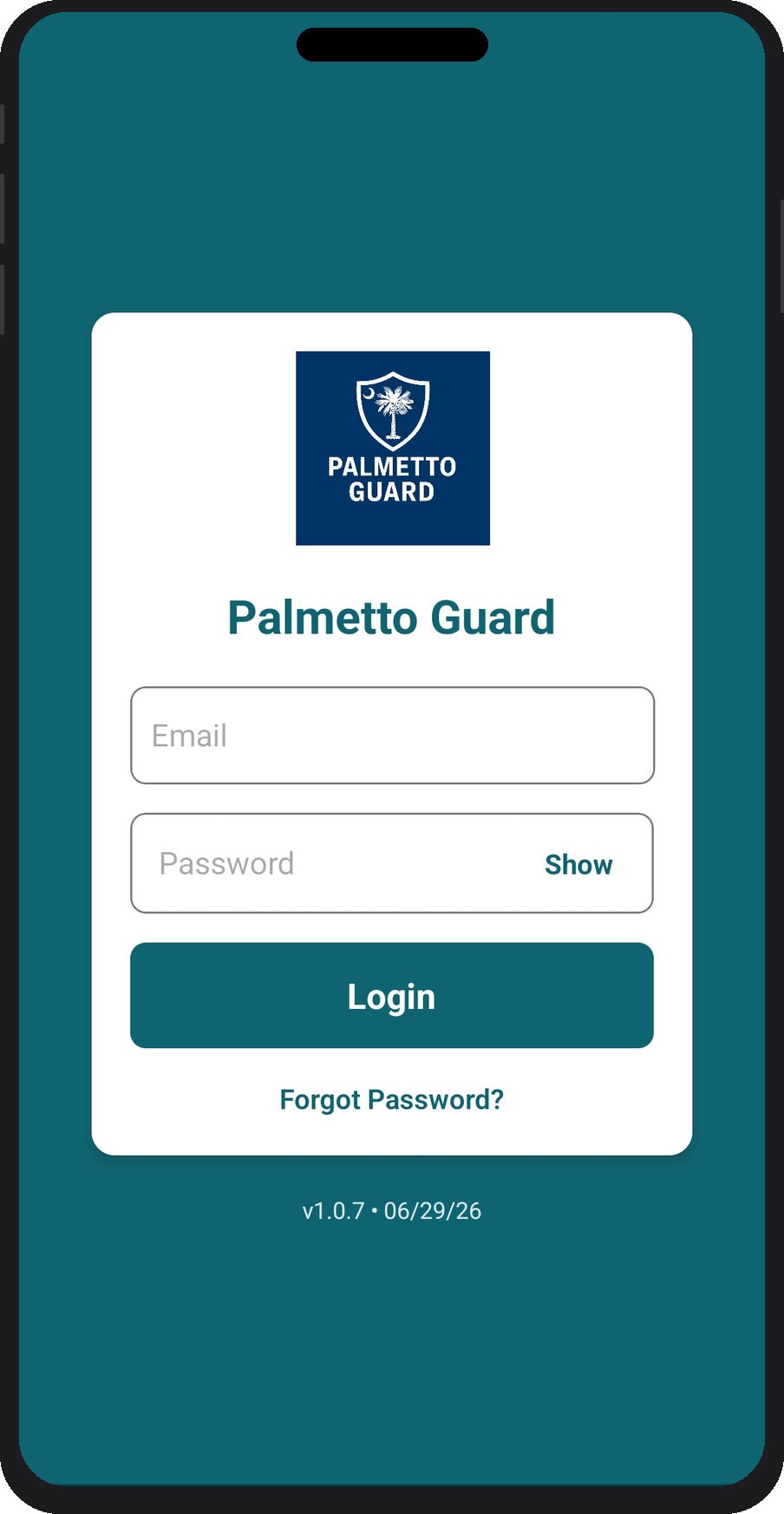
You'll receive an invitation email from your community. Tap the link to set your password, then sign in with your email and password.
If you don't see the invitation, check your spam folder or ask your community's office to re-send it.
Home
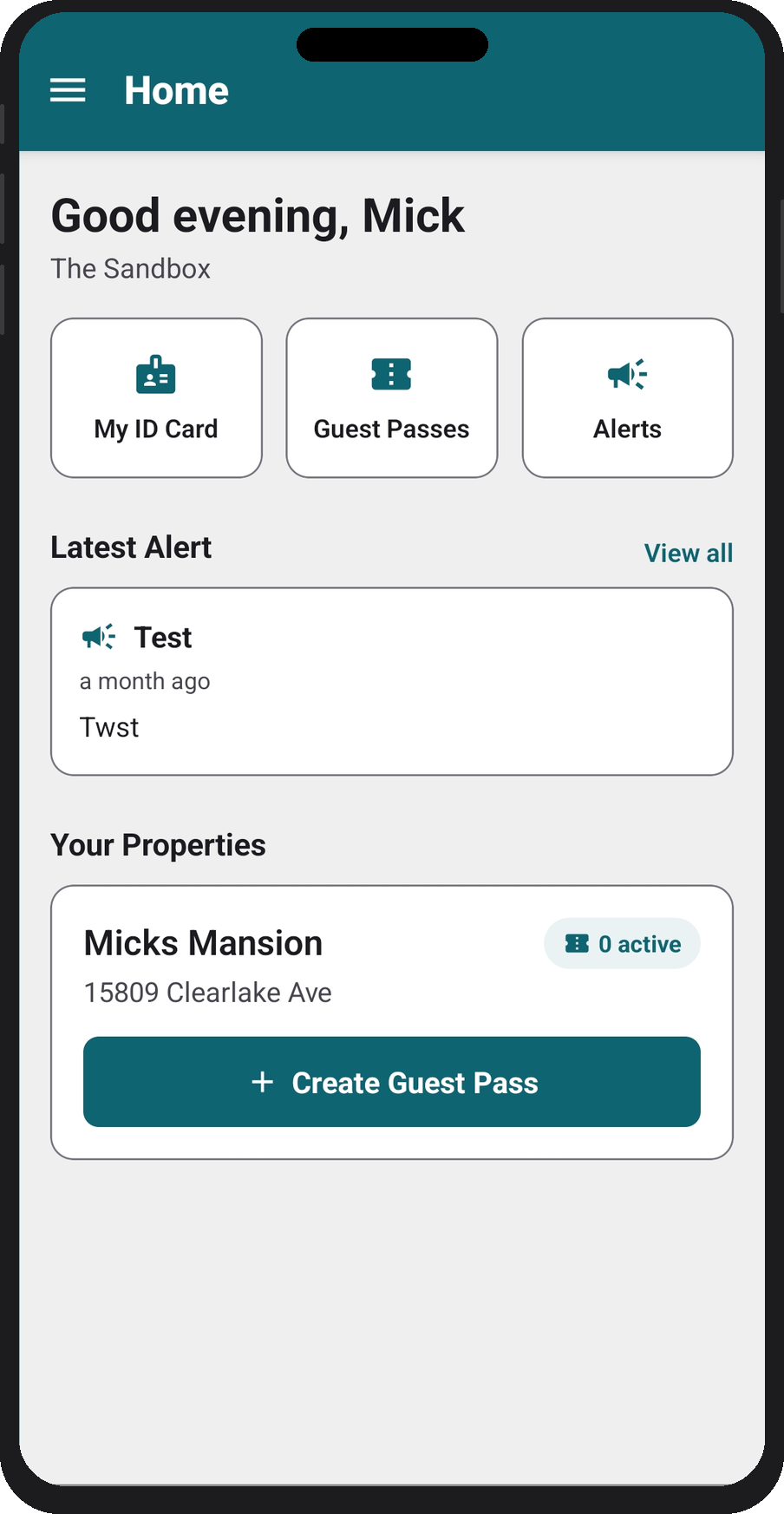
After signing in, the Home screen shows your community and the unit(s) you're associated with. Quick-action buttons at the top give you instant access to your ID Card, Guest Passes, and Alerts. The Latest Alert card keeps you up to date, and your property card shows active pass counts with a shortcut to create a new guest pass.
My ID Card
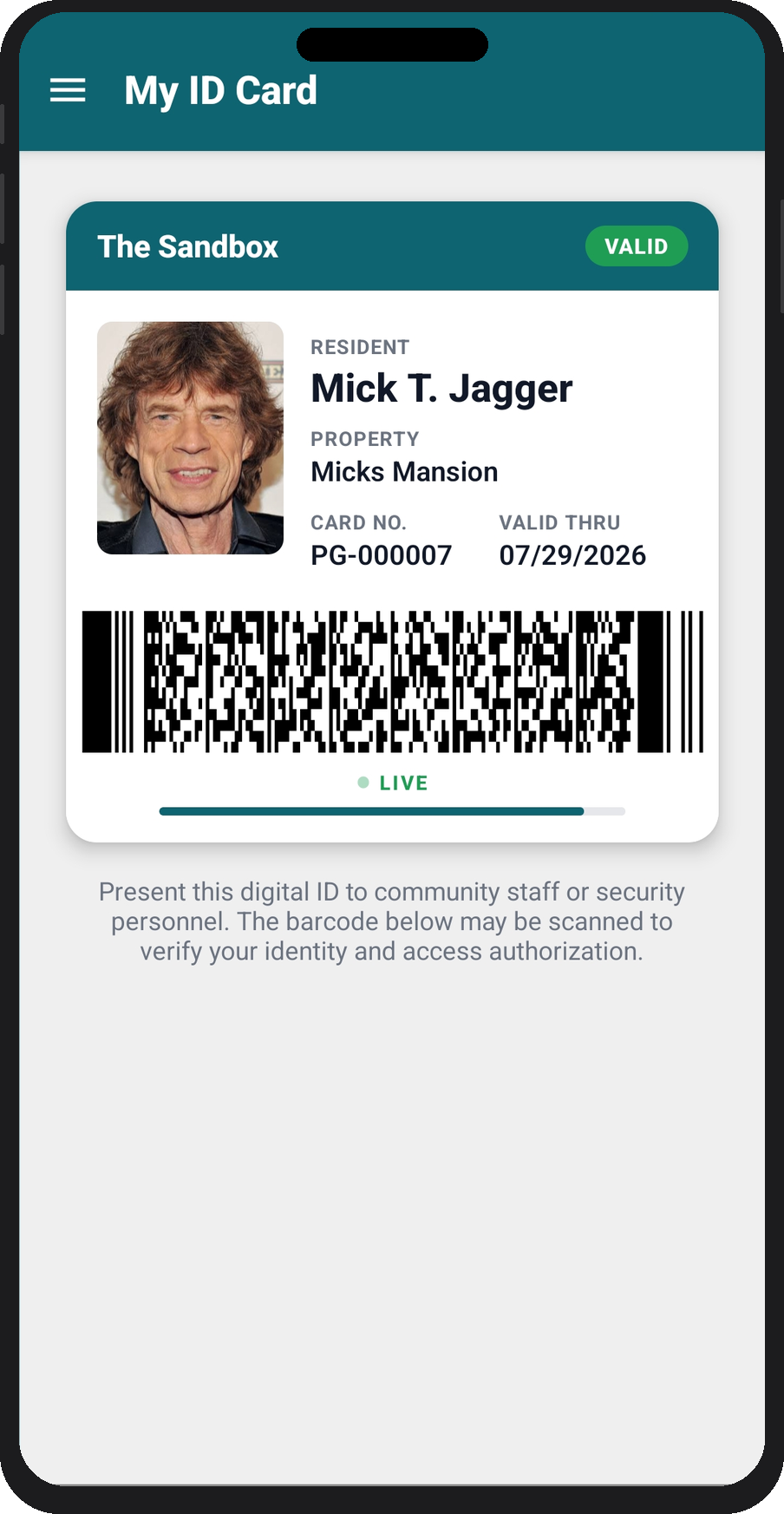
Tap My ID Card from the Home screen or menu to open your digital resident badge. It displays your name, photo (if on file), property, card number, and valid-through date. At the bottom is a live, rotating barcode — this refreshes automatically and can be scanned by gate staff or kiosks to verify your identity and access authorization.
My Guest Passes
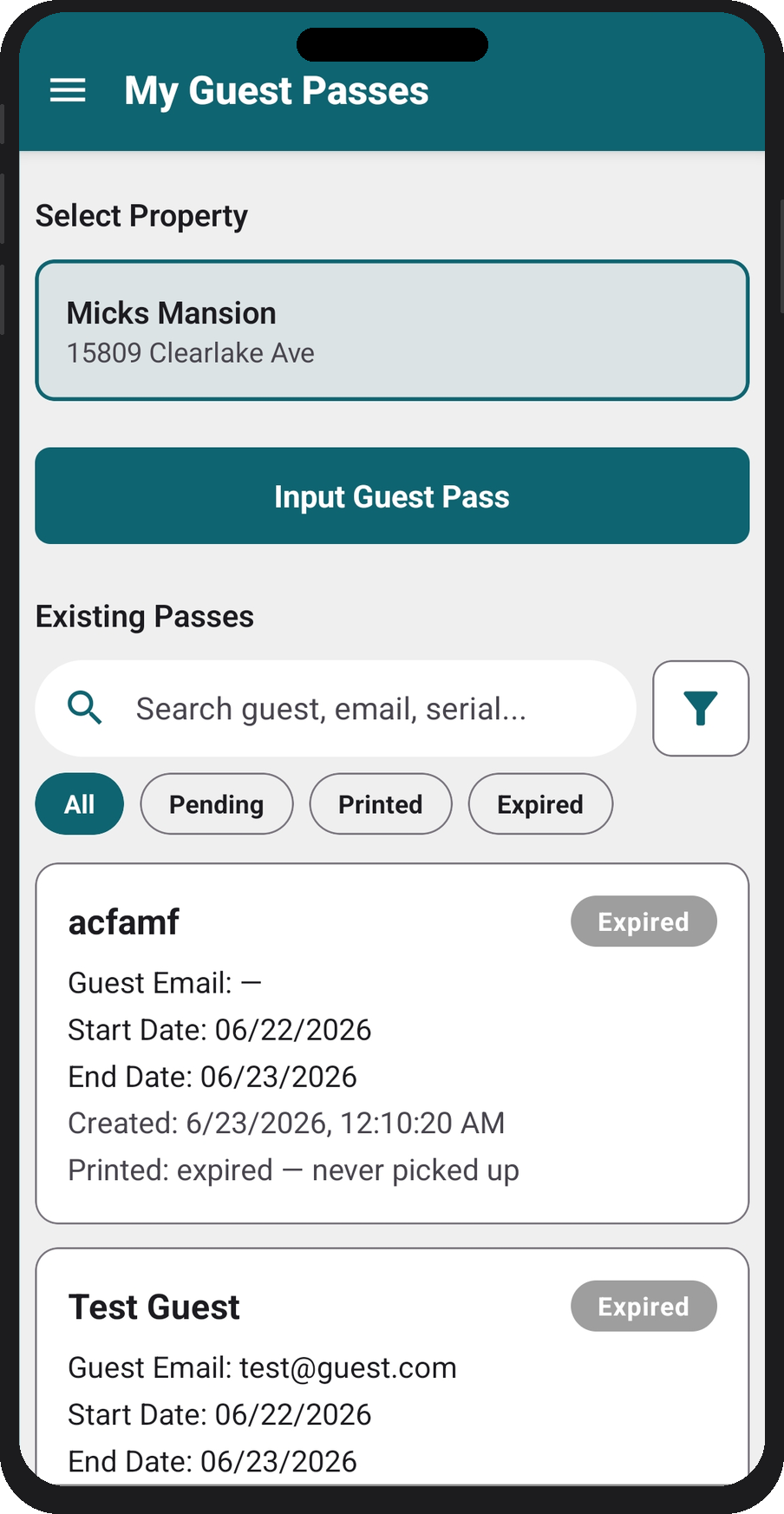
This is where you create and manage passes for your visitors. You don't need a passcode — the app already knows your unit.
Create a guest pass
- Open My Guest Passes and select your property (if you have more than one unit, choose the one the guest is visiting).
- Tap Input Guest Pass.
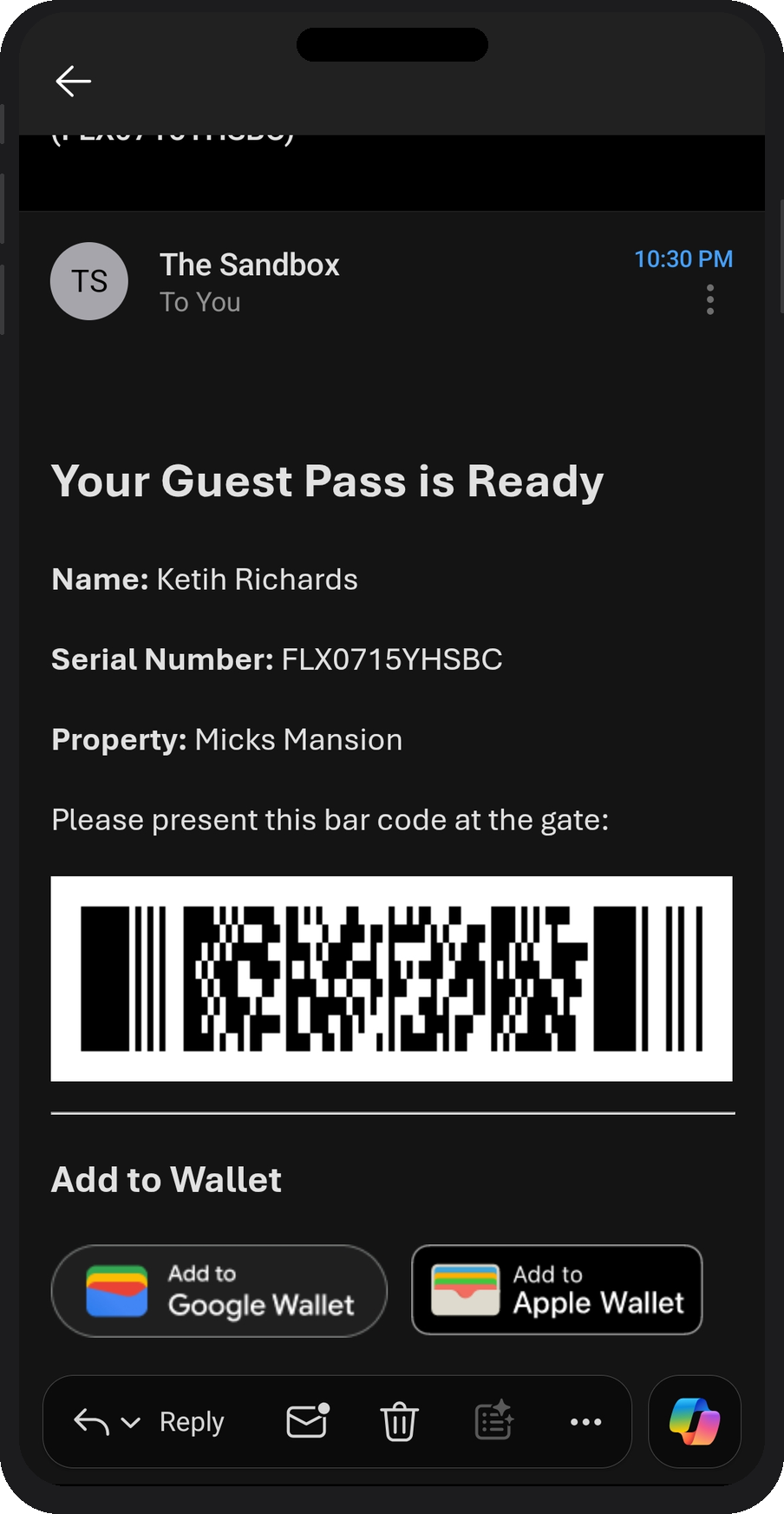
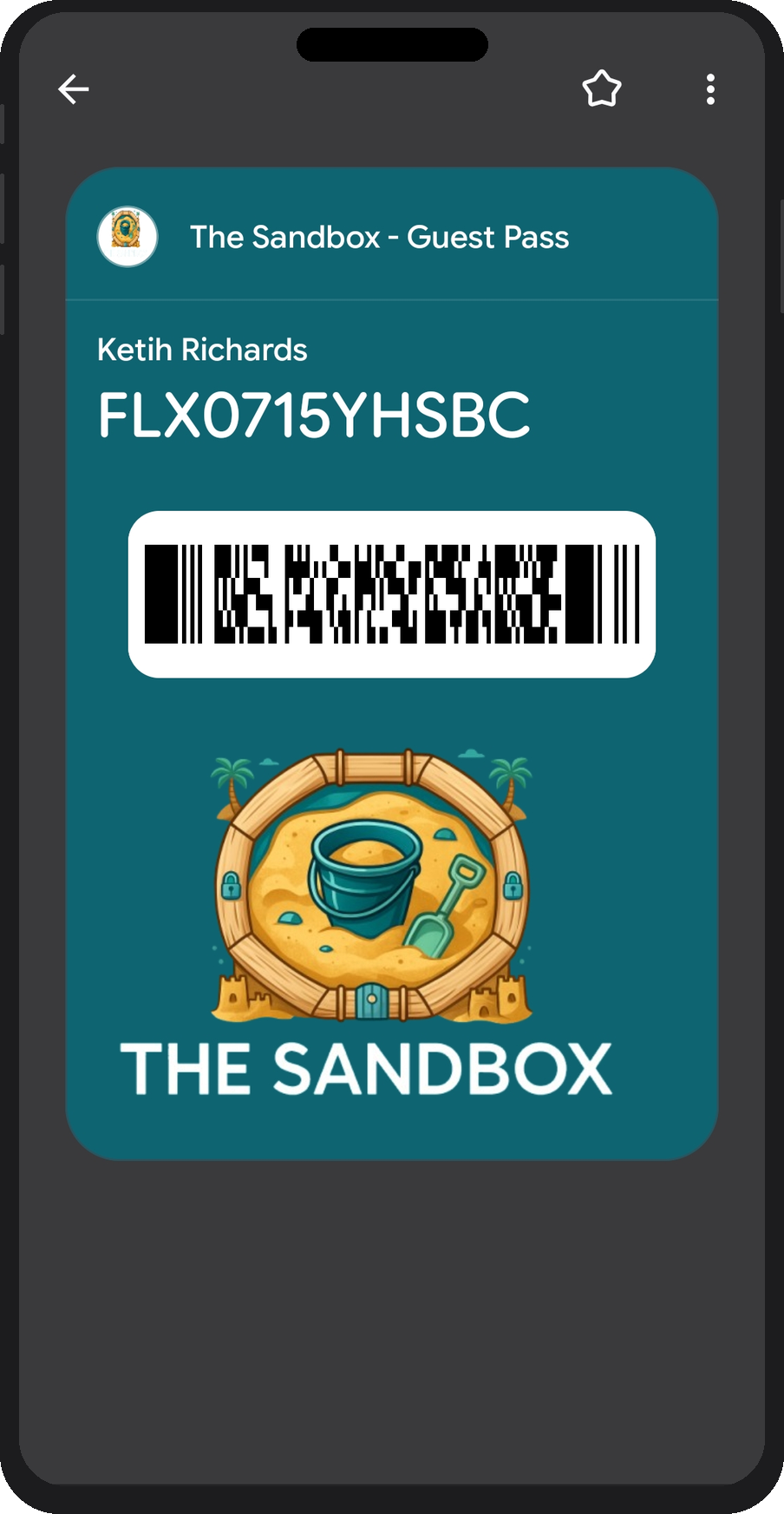
- Enter the Guest Name and, optionally, a Guest Email. If your community has this enabled, adding a guest email will automatically send your guest an email with a barcode and Google and Apple Wallet links they can present at the access point.
- Set the Start Date and the Expiration Date for the visit.
- Tap Create Pass.
What your guest receives
If a guest email was provided, your guest gets an email with their pass barcode and buttons to save the pass directly to their Google Wallet or Apple Wallet. They can present either the email or their wallet pass at the gate.
Pass status
Each pass shows one of the following statuses:
- Upcoming — created successfully but the start date hasn't arrived yet.
- Active — currently valid; your guest can use it at the gate.
- Expired — the expiration date has passed.
- Used — the pass has been scanned and fulfilled.
Tap any pass in the list to view its details or share a reminder with your guest.
Community Alerts
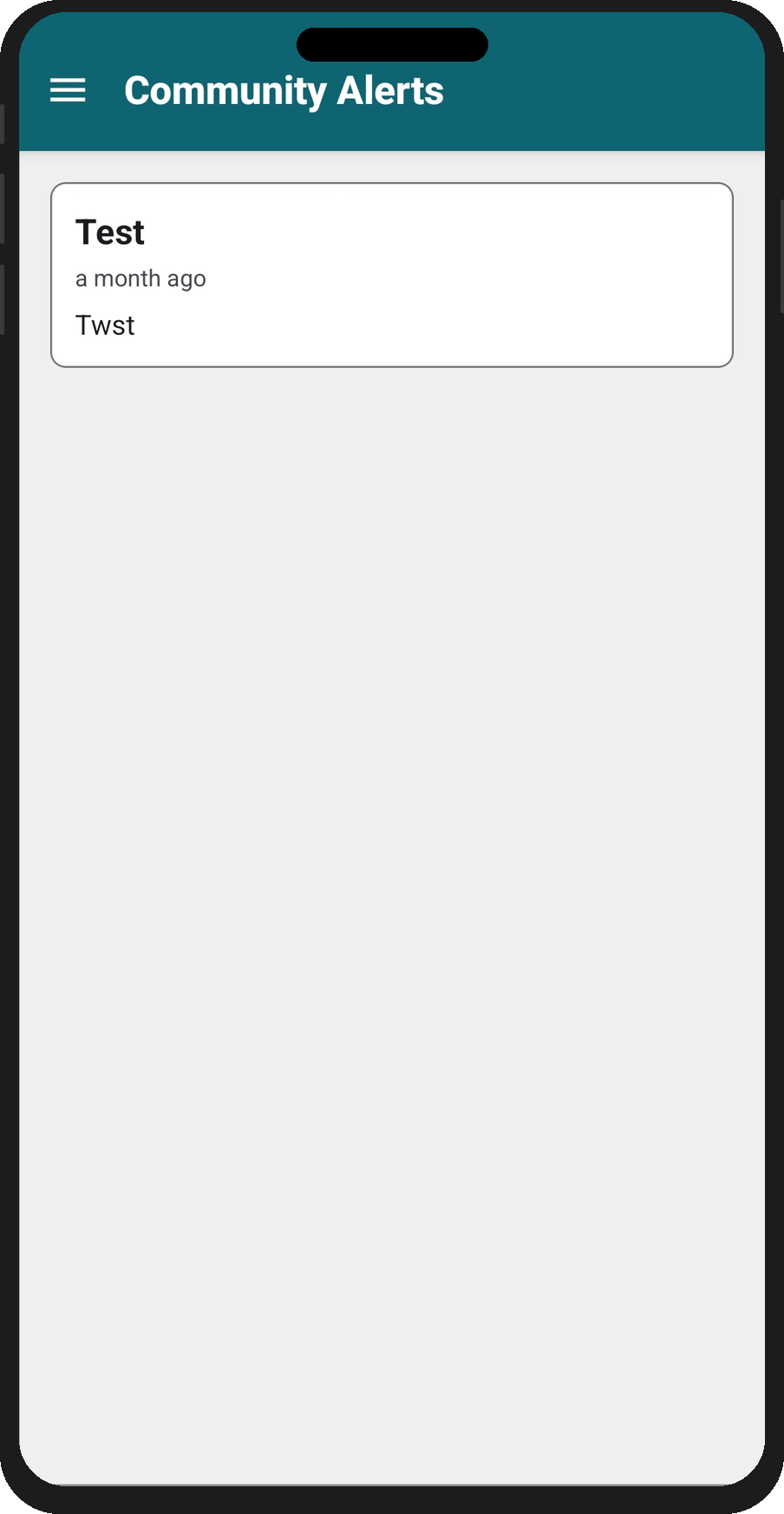
Community Alerts shows announcements and notifications broadcast by your community's administrators — things like gate closures, maintenance notices, or emergency updates. Alerts appear in reverse-chronological order. Tap an alert to read the full message.
Community Documents
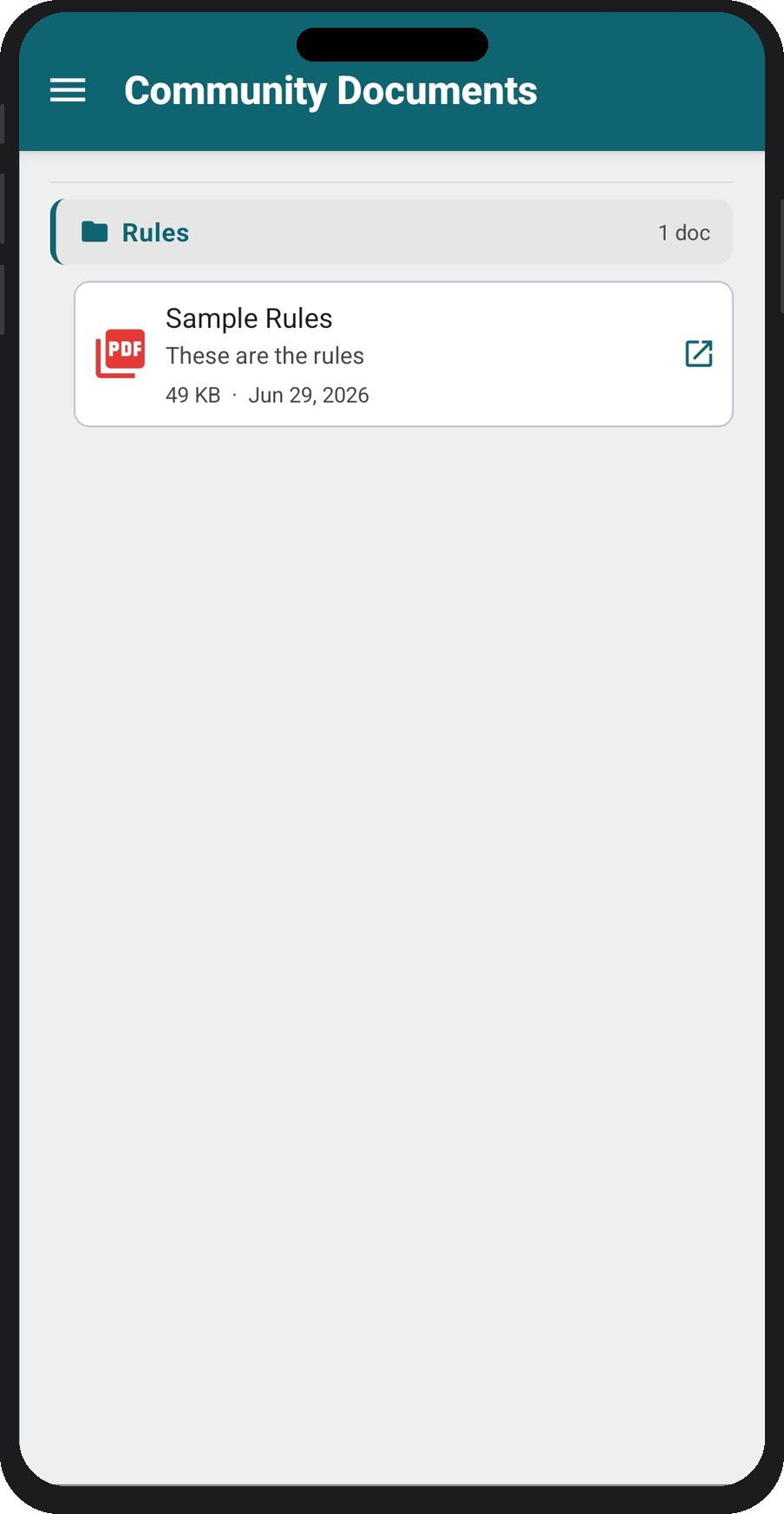
Community Documents gives you access to files shared by your community — HOA rules, parking policies, welcome packets, and more. Documents are organized into folders. Tap a document to open it directly on your device.
Switching communities
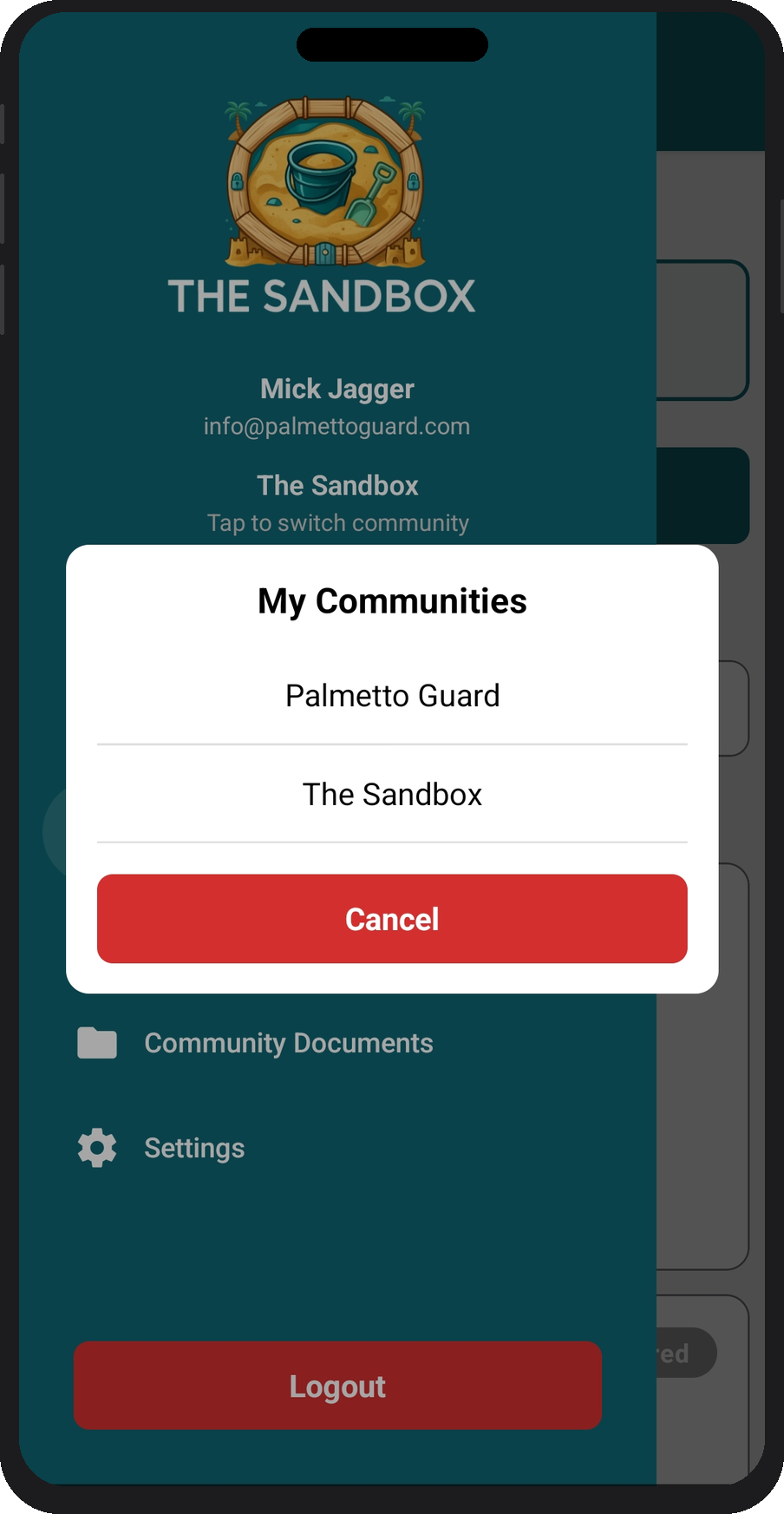
If you're a resident in more than one Palmetto Guard community, you can switch between them without logging out. Open the side menu and tap your community name (shown below your profile) — a My Communities sheet will appear listing all communities you belong to. Tap the one you want to switch to.
Settings
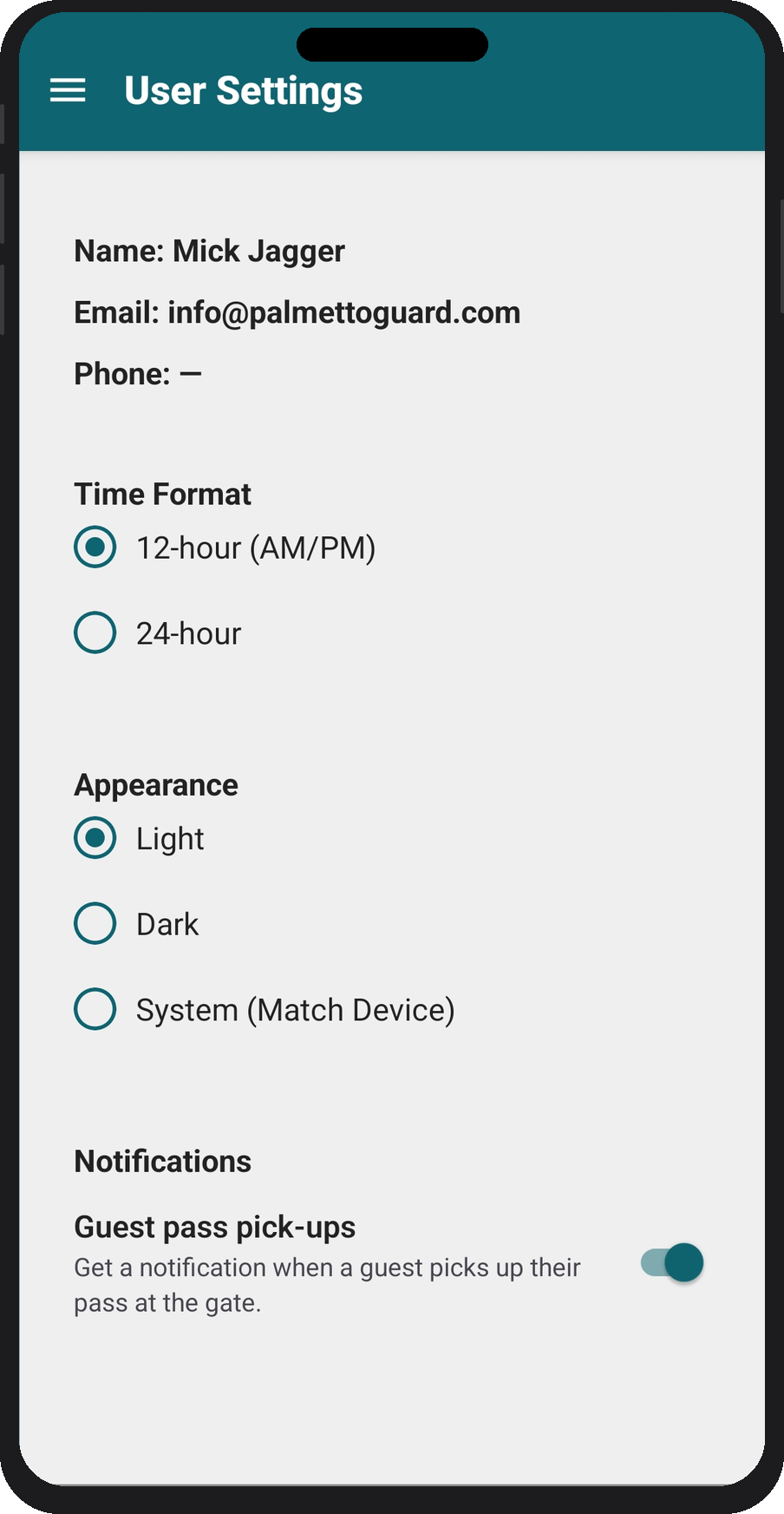
Open Settings from the side menu to adjust your preferences:
- Time Format — choose 12-hour (AM/PM) or 24-hour display.
- Appearance — Light, Dark, or System (follows your device setting).
- Notifications → Guest pass pick-ups — receive a push notification whenever a guest scans their pass at the gate.
Logging out
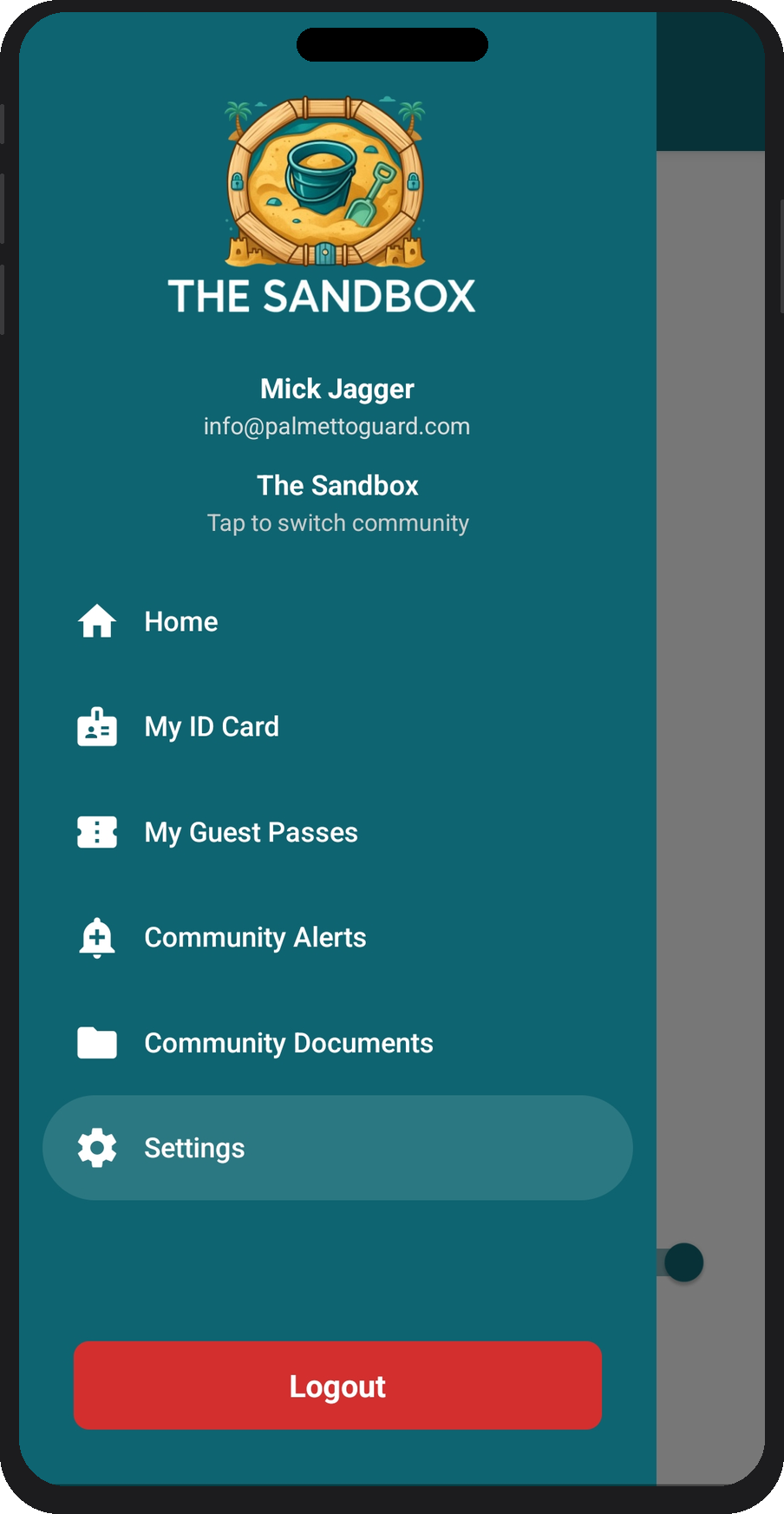
Open the side menu and tap Logout at the bottom. You can also access all main sections of the app from the menu — Home, My ID Card, My Guest Passes, Community Alerts, Community Documents, and Settings.
Getting help
If you have trouble with the app or your account, contact your community's management office — they can resend your invitation, reset your access, or update your unit information.
For technical issues with the Palmetto Guard platform itself, reach out to info@palmettoguard.com.