Administrator Guide
Roles & Permissions
Palmetto Guard controls what each team member can see and do through roles. Define a set of roles for your community, choose exactly what each can access, and assign a role to each user. This guide explains how permissions work and documents every one available.
Overview
Core concepts
- Roles live at the community level. Each community defines its own roles.
- A user can hold one or more roles in a community, but only one is active at a time. They switch their active role from the community/role switcher in the app drawer, and permissions come from whichever role is active — roles are not combined.
- Roles are per community. Someone who works in more than one community has separate role(s) in each, independent of the others.
- Default deny. With no active role — or a permission left at its lowest setting — access is denied. Nothing is open until you grant it.
How permissions work
Every permission is one of three kinds.
1 · Access levels (graduated)
Most permissions use an ordered scale. Each level includes everything below it:
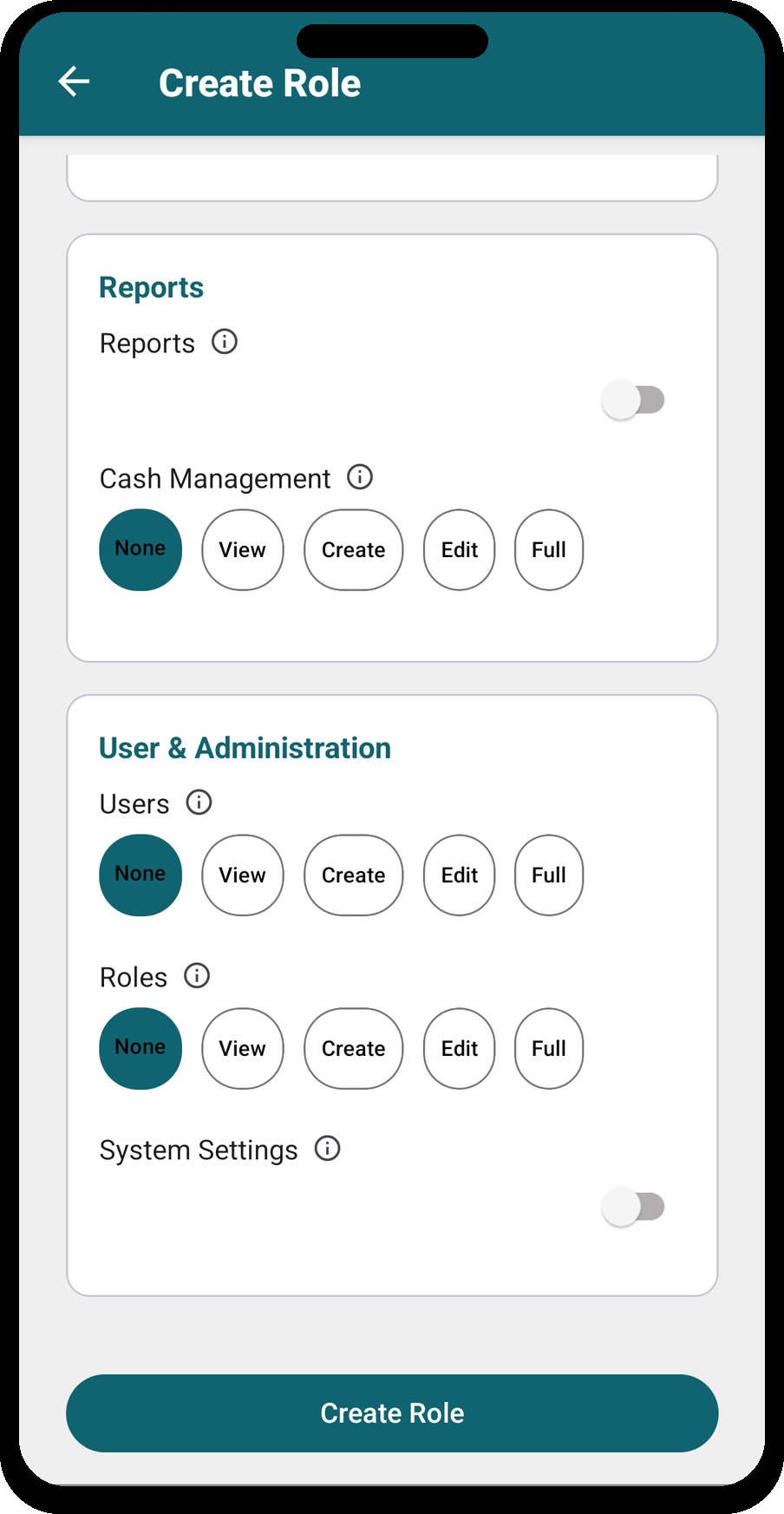
- None — the feature is hidden; no access.
- View — read-only.
- Create — view, plus add new records.
- Edit — create, plus change existing records.
- Full — edit, plus delete and any administrative extras.
The exact meaning varies slightly per feature — the reference tables spell out each one.
2 · On/off toggles
A simple switch: the user either has access to that screen or feature, or doesn't.
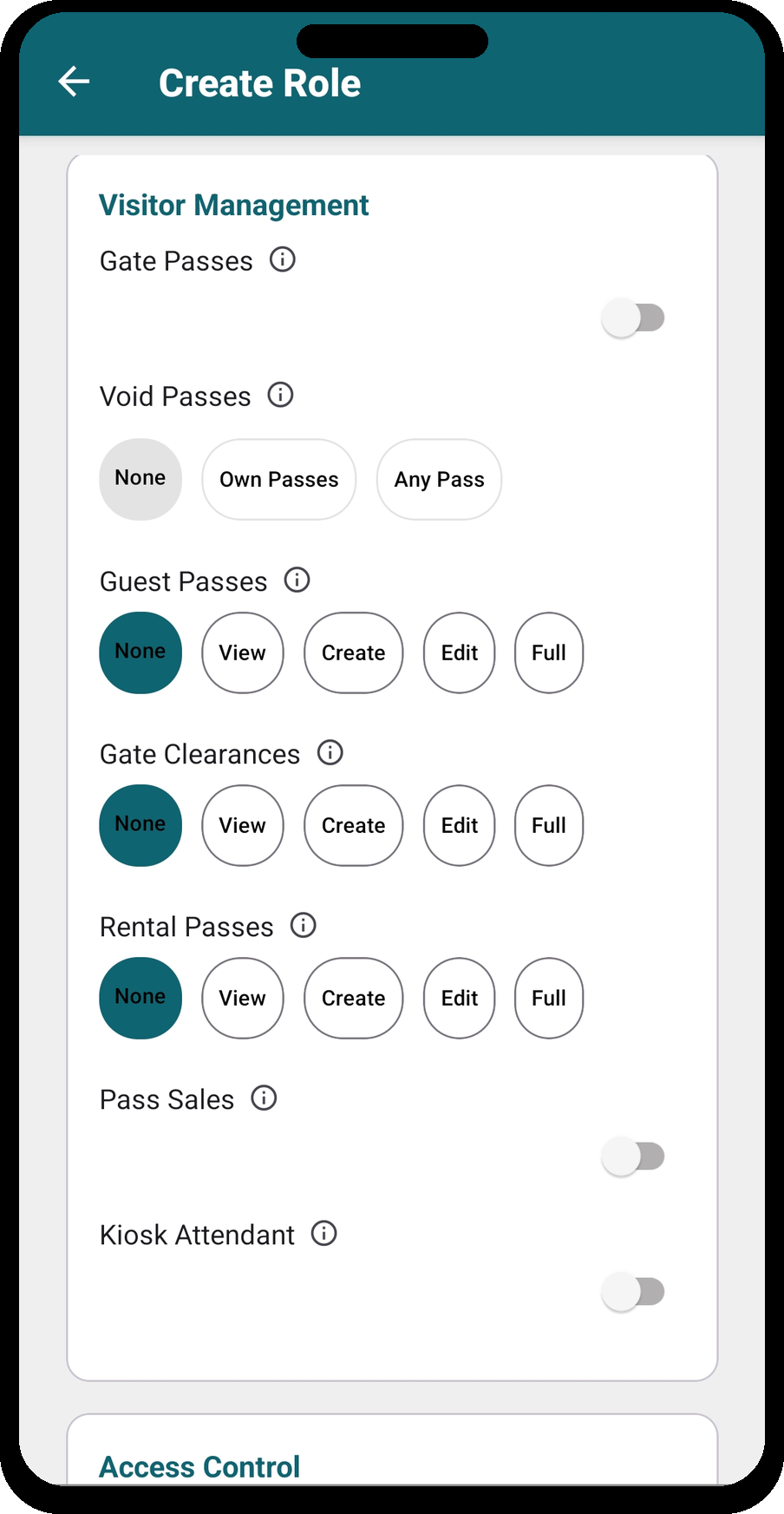
3 · Void passes (special)
Voiding a pass is sensitive, so it has its own three-way setting:
- None cannot void any pass.
- Own Passes can void only passes the user created.
- Any Pass can void any pass in the community.
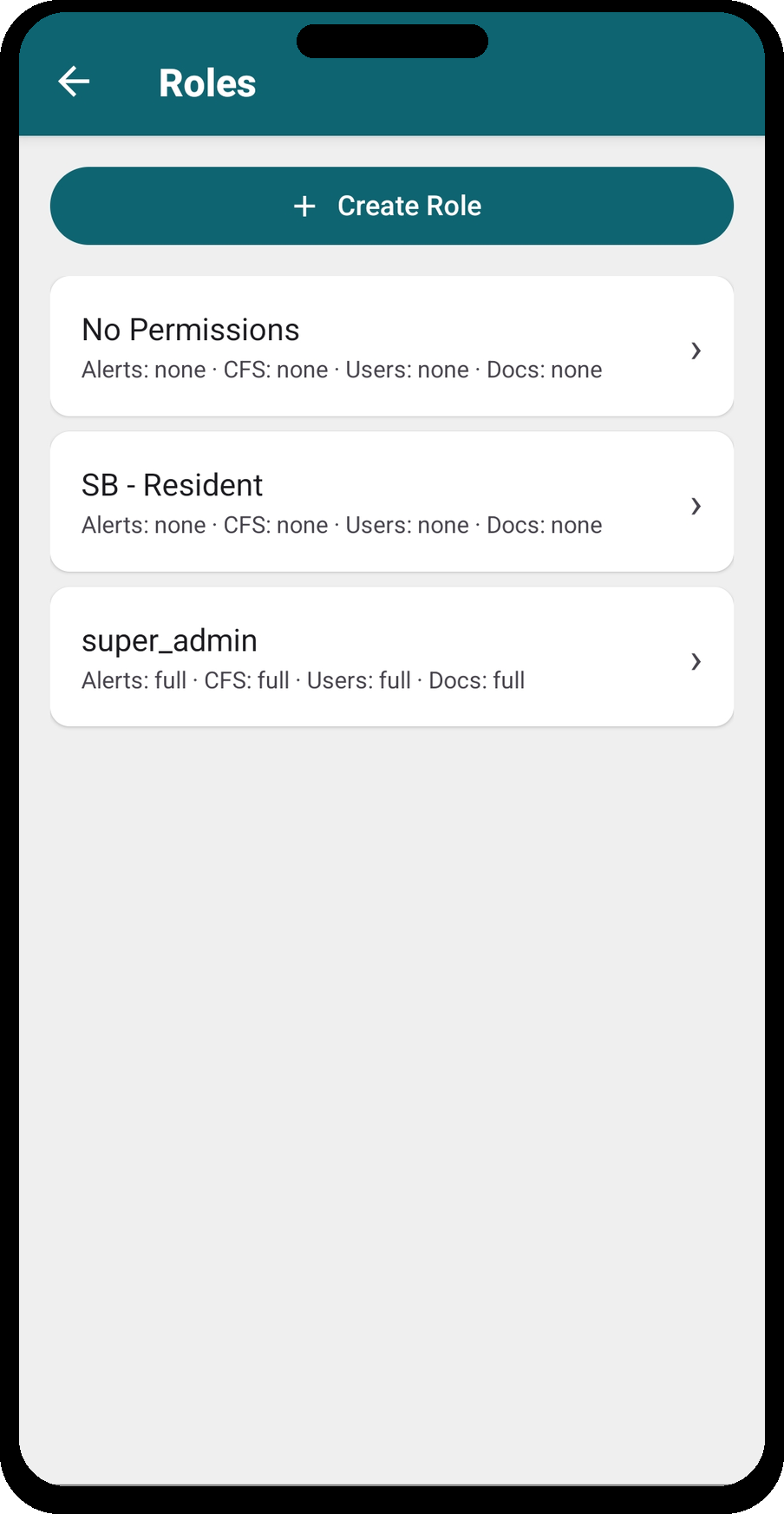
Managing roles
Role management is itself a permission (Role Management), so only users you trust with it can change roles.
Create or edit a role
- Open Role Management.
- Create a new role, or open an existing one to edit.
- Give it a Role Name.
- Work through the permission categories, setting each level or toggle.
- Save.
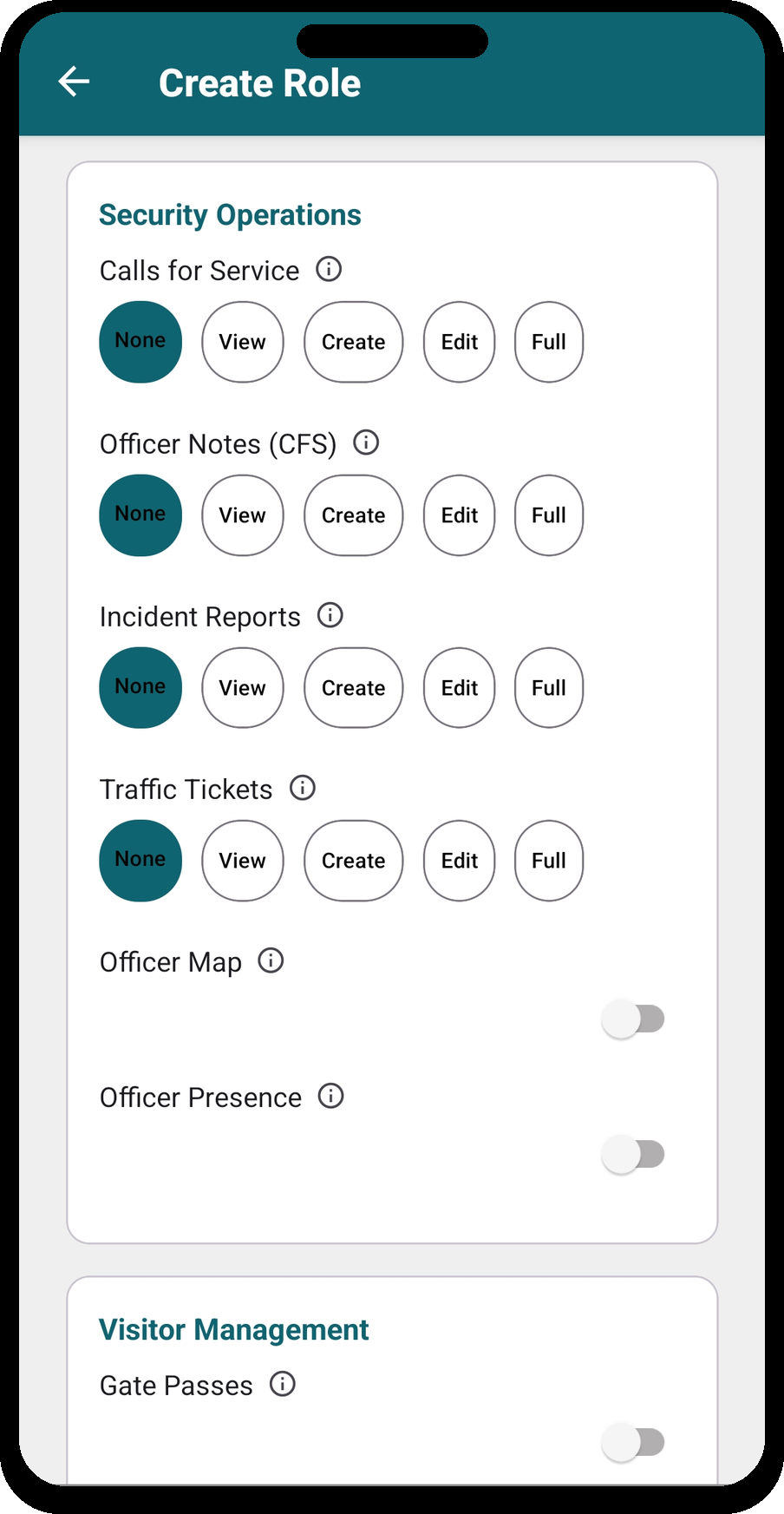
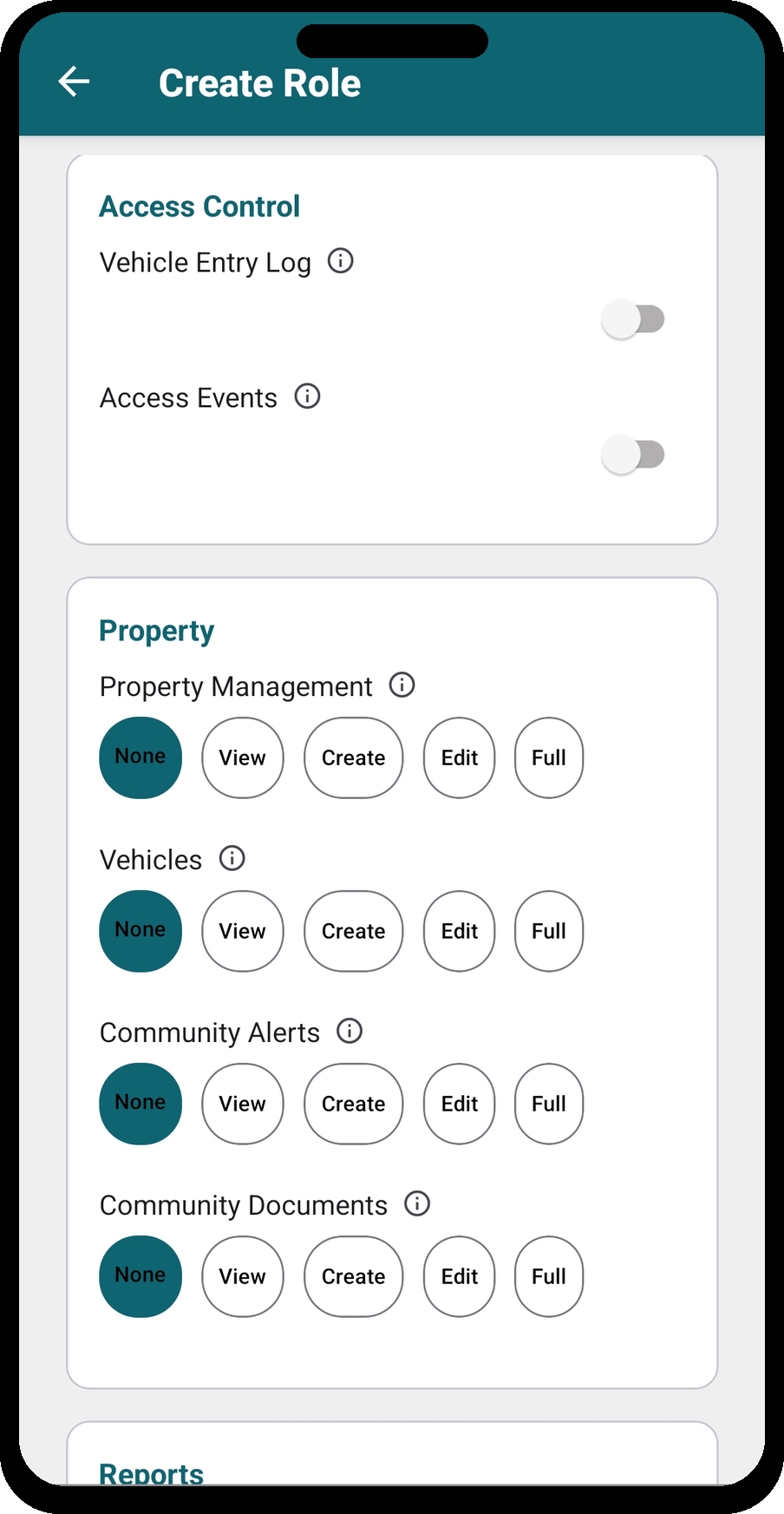
The Create Role form walks through every permission category. Work top to bottom — set each level or toggle, then tap Create Role at the bottom to save.
Assign a role to a user
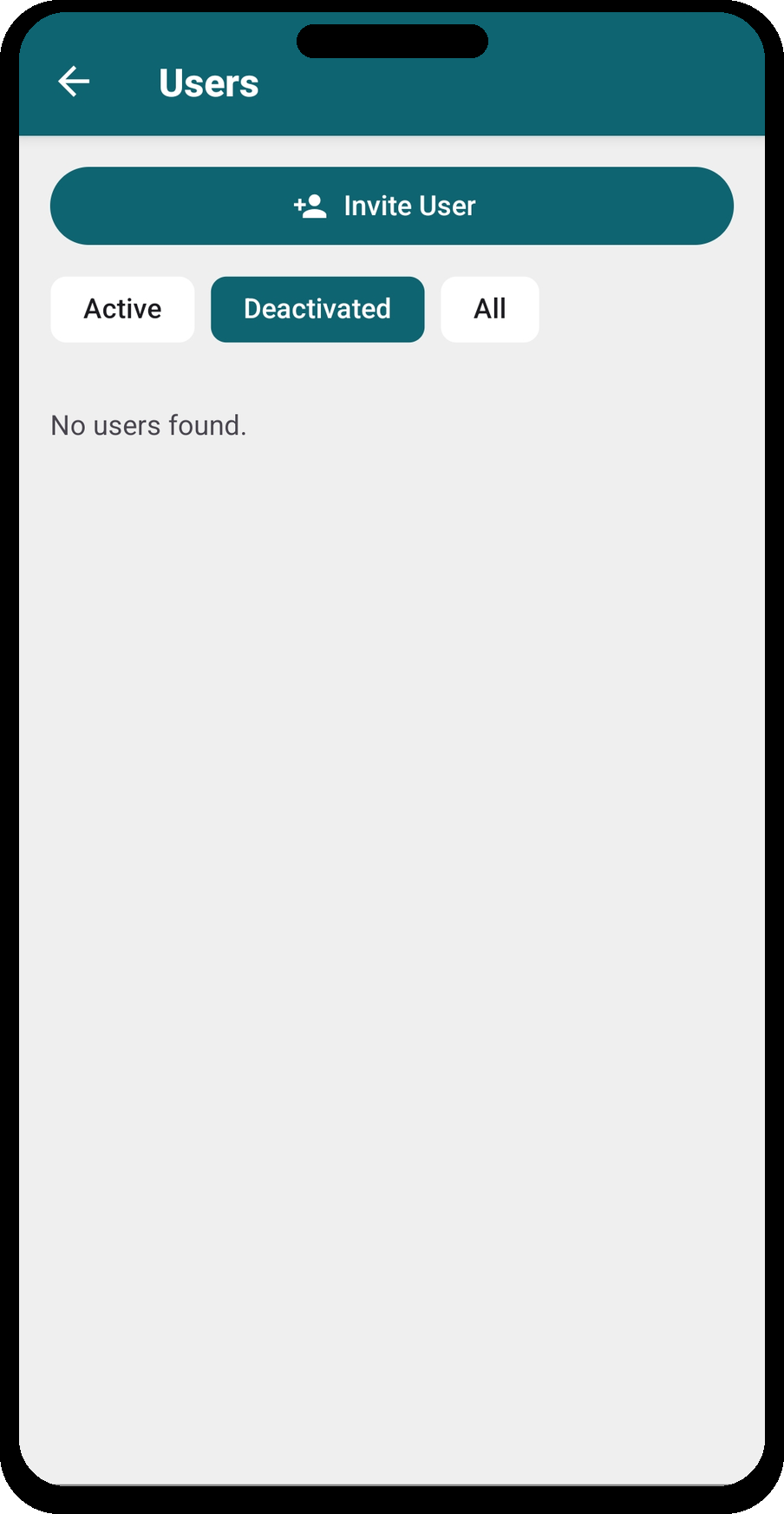
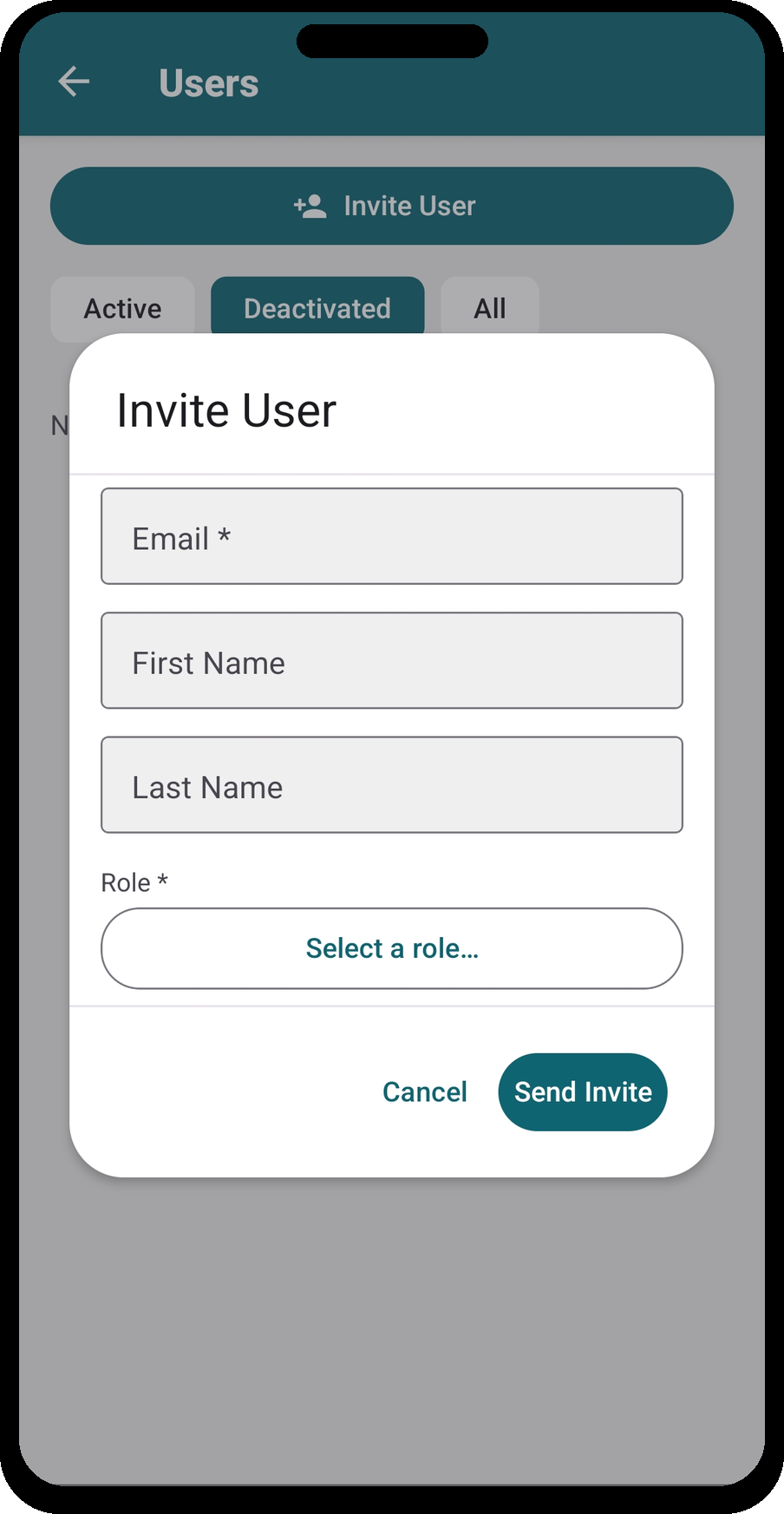
In User Management, open the user, choose Select a Role, and pick the role. You can assign more than one role to the same person. Use Remove Role to revoke one.
Using more than one role
A person can hold several roles in a community, but only one is active at a time. They switch their active role from the community/role switcher in the app drawer (shown as Community (Role)), and their permissions come from whichever role is active — the roles are not stacked together.
This is handy for covering shifts. For example, an officer who occasionally picks up a dispatch shift can be given the Dispatch role in addition to their normal one. When they cover the shift they switch their active role to Dispatch, then switch back afterward. Because only the active role applies, make sure each role contains everything needed for that job on its own, rather than relying on two roles to combine.
Permission reference
Organized into the same six categories you'll see on the role editor.
Security Operations
| Permission | Type | What the levels grant |
|---|---|---|
| Calls for Service | Level | View: read-only access to all calls. Create: open new calls and edit the narrative. Edit: edit calls assigned to them and update their own status, timestamps, and notes. Full: edit any call, reassign officers, force-close. |
| CFS Officer Notes | Level | Controls editing other officers' notes (everyone can always edit their own). None: own notes only. Edit: edit others' notes on calls they manage. Full: supervisor — any officer's notes on any call. |
| Incident Reports | Level | View: read all reports. Create: draft and submit (field officer). Edit: approve or reject submissions (supervisor). Full: also delete. |
| Traffic Tickets | Level | View: read issued/draft tickets. Create: draft and issue (field officer). Edit: void and amend issued tickets (supervisor). Full: also delete. For SLED-certified armed patrol officers. |
| Officer Map | Toggle | View the live map of active calls and officer positions. |
| Officer Presence | Toggle | Be tracked as an on/off-duty officer with live location. |
Visitor Management
| Permission | Type | What the levels grant |
|---|---|---|
| Gate Passes | Toggle | Access the Gate Pass list screen. |
| Guest Passes | Level | View: see the list and print. Create: input new passes (+ print). Edit: edit existing (+ create + print). Full: delete passes (+ all above). |
| Gate Clearances | Level | View: read-only list. Create: add. Edit: add and edit. Full: add, edit, and delete. |
| Rental Passes | Level | View: see the list and print. Create: input new (+ print). Edit: edit passes and update billing status (+ create + print). Full: delete (+ all above). |
| Pass Sales | Toggle | Access the Point of Sale screen to sell passes. |
| Kiosk Attendant | Toggle | Monitor kiosks, view recent passes, and send test prints. |
| Void Passes | Void | None / Own Passes / Any Pass — which gate passes the role can void. |
Property
| Permission | Type | What the levels grant |
|---|---|---|
| Property Management | Level | View: read-only across properties, titles, contacts, and companies. Create: add them. Edit: edit records and manage contacts on titles. Full: delete records and grant/revoke resident app access. |
| Vehicles | Level | View: look up plates and decals (gate-officer use). Create: register new vehicles. Edit: update records. Full: delete/deactivate vehicles. |
| Community Alerts | Level | View: see alerts. Create: create new alerts. Edit: edit existing. Full: delete alerts. |
Reports
| Permission | Type | What it grants |
|---|---|---|
| Reports | Toggle | Access the Reports module to run sales, pass, and operational reports. |
User & Administration
| Permission | Type | What the levels grant |
|---|---|---|
| User Management | Level | View: see the users list. Create: invite/add users. Edit: assign and remove roles. Full: create, edit, and remove users. |
| Role Management | Level | View: view roles and their permissions. Create: create roles. Edit: edit roles. Full: create, edit, and delete roles. |
| System Settings | Toggle | Access system configuration: location settings, pass types, incident types, printers, Square, and kiosk setup. |
Example role recipes
Starting points — adjust to your community. — means leave at None/Off.
| Permission | Gate Officer | Front Desk / Sales | Security Supervisor | Property Manager | Administrator |
|---|---|---|---|---|---|
| Guest Passes | Create | Create | Edit | View | Full |
| Rental Passes | Create | Create | Edit | View | Full |
| Gate Passes | On | On | On | — | On |
| Pass Sales | On | On | On | — | On |
| Void Passes | Own | Own | Any | — | Any |
| Kiosk Attendant | On | On | — | — | On |
| Vehicles | View | — | View | Full | Full |
| Gate Clearances | View | Create | Edit | View | Full |
| Calls for Service | — | — | Full | — | Full |
| CFS Officer Notes | — | — | Full | — | Full |
| Incident Reports | Create | — | Edit | — | Full |
| Traffic Tickets | — | — | Edit | — | Full |
| Officer Map | On | — | On | — | On |
| Officer Presence | On | — | On | — | — |
| Property Management | — | — | — | Full | Full |
| Community Alerts | — | — | Create | Full | Full |
| Reports | — | On | On | On | On |
| User Management | — | — | — | — | Full |
| Role Management | — | — | — | — | Full |
| System Settings | — | — | — | — | On |
Best practices
- Grant the least access needed. Start low and raise a permission only when someone actually needs it.
- Reserve "Full" and "Any." Delete rights and Void → Any Pass belong with supervisors and administrators, not front-line staff.
- Separate field and supervisor duties. For incidents and traffic tickets, Create is the field officer and Edit is the reviewer — keep them in different roles so submissions get a second set of eyes.
- Limit Role and User Management. Anyone with Full on these can reshape access for the whole community — grant sparingly.
- Test a role by logging in as it. Assign a new role to a test user and confirm the screens and actions look right before rolling it out.
Getting help
Questions about designing your roles? Reach the Palmetto Guard team at info@palmettoguard.com.